
Introduction
The Catholic Archdiocese of Sydney (CAS) ICT Services Department have deployed the KnowBe4 Phish Alert Button, or PAB, to all users of CAS Devices, to aid in the timely and secure reporting of fraudulent or risky email threats.
The PAB is automatically installed within the Outlook app, on Windows, Mac OS, iOS, and Android clients, as well as the Outlook Online client, and is used by users to report any message that is 'risky', such as scams, phishing, fraud, or malware.
-
Note: The Phish Alert Button is not a spam filter.
The PAB can be used to report spam emails (emails that are unwanted, but not specifically malicious), however these are simply deleted on receipt. If you are receiving repeated spam emails from a single sender, please contact the helpdesk directly for assistance blocking the sender.
Using the Phish Alert Button
Microsoft Outlook
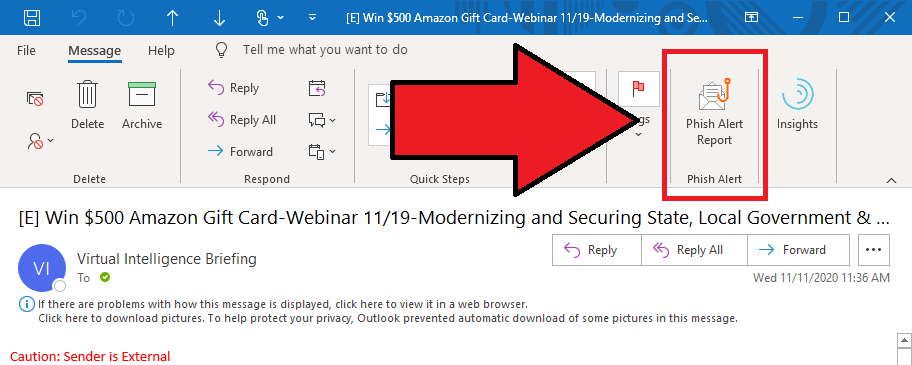
For users of Microsoft Outlook, on both Windows and Mac OS clients, the Phish Alert Button is installed and automatically appears in both the 'ribbon' menu bar in the regular email folder view, and in the email reading view (when an email is fully opened as a new window).
If the button is not immediately visible, click the ellipsis (...) button on the right hand side of the menu. The Phish Alert Button is often bumped off the end of the ribbon depending on the size and resolution of your screen, or other add-ins that consume space in this bar.
Once you have identified a risky email, select it in your inbox, and simply click the Phish Alert Button to begin the reporting process.
Outlook for Mobile (iOS and Android)
The Phish Alert Button is supported by the official Microsoft Outlook Mobile App, available in both the iOS App Store, and the Android (Google) Play Store.
When you have identified a risky email, click the ellipsis (...) on the right hand side of the email, usually located below the time/date of email receipt. Within this menu, select the 'Phish Alert' button, which has the same icon as your desktop client.
Outlook for Web
Users may occasionally use the web version of Outlook, and can report risky emails using the integrated Phish Alert Button in this platform also. The Outlook for Web platform can be accessed at https://outlook.office.com
Once you have identified a risky email using Outlook for Web, open the message and select the ellipsis (...) on the upper right hand corner of the email.

Within this menu, select the 'Phish Alert' option, which will begin the reporting process.
Frequently Asked Questions & Troubleshooting
-
I don't have a Phish Alert Button?
- Most likely, the Phish Alert Button is simply hidden from view due to your screen size or resolution, or other functions taking up space in the Outlook ribbon (menu). Click the ellipsis (...) located at the right hand end of the ribbon to reveal apps that are hidden.
- You can right click the Phish Alert Button and select 'Pin to Ribbon' to help ensure the PAB stays in view, but this still depends on available screen space.
- If you still don't have a Phish Alert Button, please contact the ICT Helpdesk by visiting https://helpdesk.sydneycatholic.org or email helpdesk@sydneycatholic.org
-
I can't report emails in a shared or delegate mailbox?
- The Phish Alert Button currently does not support shared or delegate mailboxes, due to changes in the way Microsoft enforces security on shared accounts. We expect this will be resolved in time, however at present, manual reporting is the best option.
- If you administer a shared or delegate mailbox, report a risky email item by sending it as an attachment to spam@sydneycatholic.org. You may be contacted by the ICT Helpdesk team to assist in gathering further details (which would normally be automatically gathered by the Phish Alert Button)
-
I can't report emails from iOS Mail, or other email apps?
- The Phish Alert Button is only available within the official Microsoft Outlook clients. The Outlook client is fully-featured, secure, and has many features not offered by the default email clients on most devices. ICT Services strongly recommend staff use the official Microsoft Outlook App to access their email.
-
I reported a suspicious email and received a congratulations message?
- Congratulations - you correctly identified a test email. From time to time, our system sends testing emails to staff. The best possible response is to report the message, and when you do so, you will receive a confirmation that you caught a phish!
Comments
0 comments
Please sign in to leave a comment.